About This Document
This is the user's guide for building and operating a ChiefNET based network. The reader would come to know the salient features of ChiefNET, tips on configuration, and monitoring for the correct operation of the network.
The reader is assumed to have the basic networking knowledge and operational experience.
- "Getting Started": tells you how to acquire and provision the ChiefNET device
- "Features Guide"" describes each feature, how to configure them, and adds tips.
- "Monitoring": describes how to monitor for correct operation of the devices and the network. Also provides troubleshooting steps and tips.
High Level Overview of ChiefNET
ChiefNET is a secure networking solution, with a Network Firewall. It supports the following use cases. - a secure gateway from your branch/HQ/DC/cloud network to the Internet/ISP - a backup for the MPLS WAN by using a secure SDWAN over Internet or ILL - a full replacement for the MPLS WAN by using a secure SDWAN over Internet/ILL - can function over any type of WAN link supported by the ISP
It is not a CONTENT-firewall. In other words, ChiefNET is an application-aware networking device (provides QoS, failover, forwarding/routing policies) but does not inspect the content of those traffic.
ChiefNET offers the most important and most impactful firewall features such as DNS filtering, high security encryption of enterprise traffic and unique device identity. We believe that almost all customers can benefit from ChiefNET for the networking needs with the most important security features available.
Advanced content-specific features such as anti-virus, deep packet inspection, URL level filtering do not come under the networking focus of ChiefNET. However, ChiefNET interoperates with the NGFW/SASE/ZTNA vendors to offer the customers a full solution.
-
Centralized Network Orchestrator: Web-based interface for device management, monitoring, and troubleshooting, accessible to customer administrators.
-
Zero Touch Provisioning: Devices do not require skilled on-site personnel. No on-site provisioning activities other than power and physical Ethernet cable connections. Plug-n-play on the LAN side or on the WAN side. Smooth interoperability with firewalls either on its LAN or WAN side.
-
Autonomous ChiefNET CPE Operation: ChiefNET CPE devices work autonomously with or without connectivity to the Orchestrator. Pre-provisioning and sync are possible on the Orchestrator for later CPE provisioning
-
Monitoring and Analytics: Real-time data storage, graphing, and report generation with customizable data retention.
-
Secure Cloud WAN: Hub-and-spoke model with fully encrypted SD-WAN for branch and HQ connectivity.
-
Local Internet Breakout: Direct internet routing for cloud traffic to optimize bandwidth and reduce latency.
-
WAN Monitoring: Continuous monitoring for packet loss, latency, jitter; includes auto-failover and QoS-based traffic management.
-
Application-Aware Traffic Policy: Defining applications and application-groups, and applying routing, QoS and forward/discard rules, failover and failback policies based on desired QoS and WAN status.
-
Advanced Fine-Grained QoS: Applying bandwidth and network quality parameters to certain classes of traffic including applications, ports, subnets and hosts; minimum bandwidth, maximum bandwidth, maximum delay and latency, and real-time, guaranteed and shared classes of traffic
-
High Availability: Supports redundancy and failover, enhancing connectivity with multiple WAN options and autonomous branch operation.
-
On-Cloud, On-Prem and Hybrid Installs: Entire solution is available on-cloud, on csutomer premises or owned data centers, or as a hybrid/combination solution, for hub-spoke, hub-mesh or custom-mesh WAN topologies.
-
Core Networking: core Ethernet, VLAN, Bridge interfaces, static routes, DHCP client/servers, DNS proxy, DNS filtering, Split-DNS, Malicious domain filtering
-
Core Networking for HQ and DC Servers: Destination NAT to house services on the HQ and on Cloud VPC/VNET, IPsec Site-to-Site connectivity with Prisma Cloud, or between HQ and DC
-
Network vs. Content Firewall: ChiefNET serves as a Network Firewall; it integrates with solutions like Prisma Cloud for advanced content security needs.
-
Network Firewall: DNS proxy, DNS filtering, Split-DNS, malicious domain filtering, custom traffic classification and policies, custom application grouping, globally maintained DNS groups and periodic synchronization
-
Customer Access Control: Customer administrator and read-only user access levels to the WebUI. Prevention of all local access to edge devices to avoid unauthorized exploits. Two-factor authentication for all users.
-
Advanced Alert Configurations: Network alerts related to failovers, status, utilization, QoS monitoring, user login/logout, configuration changes, new device provisioning etc, and alerts sent over Email and Telegram
-
ISP SLA Reporting: Advanced monitoring reports for reconciliation of the Service Level Agreements with the ISPs, with daily and monthly reports.
Getting Started
Shipping ChiefNET CPE Devices to Customers
ChiefNET devices are shipped to the customers using the following simple steps.
- Obtain a list of locations and the number of devices
- For each location, find out if the customer has a requirement for static IP address. Though it is possible to change this at a customer site, ChiefNET can configure this in advance before shipping to the customers. If there is no static IP address requirement, ChiefNET is, as a default, configured to obtain IP address using DHCP on the WAN ports, from the ISP-router.
- For each location, as the device is prepared by the ChiefNET team (on ChiefNET premises), record the mac-address, device model, serial number, on the master inventory spreadsheet. The IP address may change over time, and it is important that these customer inventory is kept up to date. The inventory spreadsheet is kept on SharePoint. This is accessible only to the ChiefNET team.
- Inform the customers to ensure that the mac-address/IP-address combination is allowed through their firewall. This is the single-most common impediment to a smooth installation of ChiefNET.
- Check if the backend services need to be installed on cloud, on premises or as a hybrid.
The above steps are essential to get the devices powered up on-site.
For each customer, the on-cloud backend is pre-installed before shipping the CPE devices to the customers. In this case, the device immediately connects itself to the configured Cloud-SDWAN tunnel and to the other branches/HQ/sites immediately.
For some customers, the backend support needs to be built on-site/on-prem. This is offered as a one-time service by ChiefNET.
HA Requirement for CPE Devices
Some locations require high-availability or redundancy support for the CPE devices. It is possible to add a standby-devices to an existing installation where there is only one device.
Device Replacement
It is also possible to replace an existing device entirely with a new device. Upon unexpected failures or environmental problems or disasters like flood and fire, we may have to ship a new device to the customer. ChiefNET backend includes the ability to immediately reconfigure a new device identical to the damaged device.
The "Device Replacement" feature is accessible only to the 'superadmin' i.e. the ChiefNET support team only. It is not available to the customers.
Deployment at the Customer Site
As soon as the device is
- powered up
- WAN port is connected to the ISP router
the device becomes visible on the ChiefNET Orchestrator as ONLINE.
If the device is not reported ONLINE, ensure that the customer's firewall configuration is updated. This is the single most common impediment to a smooth installation of ChiefNET.
In some cases, ChiefNET is connected to the ISP router and that is usually not an issue. These ISP routers by default act as DHCP servers. ChiefNET's WAN ports act as DHCP clients. Once ChiefNET's WAN ports acquire the IP address, ChiefNET establishes the management layer connectivity with the Orchestrator.
In some cases, ChiefNET is connected to the firewall, which is then connected to the ISP router. In this case, the firewall may have to be configured or reconfigured to allow ChiefNET's outgoing connection.
No ports need to be opened on the firewall from the WAN/Internet side. The firewalls only need to allow ChiefNET's outgoing connections.
ChiefNET's LAN and WAN Subnets
The LAN and WAN subnets of ChiefNET need to be distinct, and non-overlapping. It is an insecure network configuration to keep those identical or overlapping.
In some cases, customers might not want to connect ChiefNET's WAN port to the Internet side. In this case, ChiefNET's LAN port needs to be connected, but ths is NOT a supported configuration. It is insecure to share a subnet between the LAN and the WAN. ChiefNET does not support it. If necessary, an additional router will need to be shipped to the customer to create a LAN-WAN topology each with a different subnet. This will need to be added to the customer's PO.
Unpackaging a ChiefNET CPE
You should have received this document along with a physical ChiefNET CPE device to be installed on your premises.
The package contains the following components. If any items are missing, please email or call ChiefNET customer support:
- ChiefNET Physical CPE device
- Power supply with standard 110V/220V prongs
Note: You will need to provide Ethernet cables (CAT-5e or CAT-6) to connect the CPE device to your network devices, as they are not included in the package.
Cabling and Connections
Installing the CPE is simple and does not require technically skilled personnel. Anyone familiar with network devices and Ethernet cables can complete the installation.
- Connect to the Internet
- Use Ethernet cables to connect Port-1 and Port-2 to your ISP-supplied devices.
- Both Port-1 and Port-2 are configured as DHCP clients by default. Ensure your ISP-supplied devices provide IP addresses via DHCP.
- Connect to Your LAN Devices
- Use Ethernet cables to connect Port-3, Port-4, and any additional ports available on the CPE to your LAN devices.
- Power On
- Connect the power supply to the CPE and ensure it powers on. Look for blinking LEDs on the Ethernet ports to confirm operation.
Notes:
- Ports are numbered from left to right, starting with Port-1.
- The device label at the bottom includes the MAC address, which helps identify the device in the ChiefNET Orchestrator WebUI.
- Take a picture of the label and the device after installation. Store the images in your company’s documentation system (e.g., SharePoint) for team reference.
Default Configuration
The ChiefNET CPE comes pre-installed with software and a simple default configuration. To begin:
- Open your browser and navigate to https://prod.chiefnet.io.
- Log in using the account created during the purchase or engagement process.
- If you are a new employee, contact your organization’s IT administrator. They can create an additional user or administrator account for you.
Once logged in, you can view your organization’s devices and configure them as needed. Refer to the ChiefNET documentation online or the context-sensitive help within the WebUI for further guidance.
Device Reset and Additional Ports
Some devices may include additional ports, such as HDMI and USB ports. These ports are not intended for regular use.
Note: Your deployment instructions may specify using the USB port to connect a 4G/LTE/5G device as another ISP connection.
Installation with a Static WAN IP Address
If your site requires a static WAN IP address, follow these guidelines:
Before Shipping: - All ChiefNET CPE devices are preloaded with software and basic WAN configurations. By default, WAN ports are set to DHCP. - If a static IP is needed, notify the sales team to preconfigure the static IP before shipping.
After Shipping: - Connect the device to a DHCP-managed WAN network to establish a connection with the ChiefNET Orchestrator. - Use the WebUI to configure the static IP address. Once configured, the CPE will re-establish the management connection using the new static IP.
Configure and Use ChiefNET CPE
This page describes how to configure the ChiefNET CPE for most general applications or deployments. Read the frequently asked questions as well for answers that point to the appropriate sections in the documentation.
Prerequisites
All configuration is done using the Orchestrator WebUI available at https://chiefnet.yavar.in This will soon change to https://prod.chiefnet.io.
The physical device (or the virtual CPE or the cloud CPE) is in contact with the Orchestrator and the device status is ONLINE.
Note that a ChiefNET CPE may be configured in advance, even before you have received the device. When you place the order for the ChiefNET CPE, it is prepared in the factory, and it is pre-provisioned on the ChiefNET Network Orchestrator.
Initial User Accounts
When a new customer signs on,
- a new "Organization" is created
- a user account is using the email address of a responsible person from the customer organization
This account is used to log into the Orcehstrator WebUI, using OTP to their email. This can be a personal email, but it is highly discouraged. This should be the corporate email address.
This account has the privileges of an administrator, also known as, 'a customer administrator'. The customer administrator can manage all aspects of all devices assigned to the customer organization.
In addition to an administrator account, 'customer user accounts' may also be created for additional personnel within the customer organization. With this privilege level, one can view the configuration, receive notifications, monitor the devices and the network, and similar operations, but they are not allowed to modify any network configuration or modify user profiles.
The customer administrator can set up any number of administrator accounts or user accounts, but it needs to be kept to a reasonable minimum. The customer must also ensure that they keep track of the personnel that have access to their network and are responsible to remove those accounts when the employee is no longer administering ChiefNET.
Logging In
Access https://chiefnet.yavar.in (soon to be https://prod.chiefnet.io)
After log in, all features of ChiefNET are available. Use the "?" icon to access the context-sensitive help on any page.
ChiefNET CPE WAN Connection Variations
ChiefNET connected to ISP Directly
Some customers connect the ChiefNET CPE device directly to the ISP-supplied devices. In this model, the ISP-supplied devices are typically gateway devices, customized and fully supported by the ISP. These ISP-supplied devices are made available to the customers as part of their Internet Service subscription. They may be Internet Leased Lines, MPLS Lines, Wired Broadband lines, or Wireless broadband lines.
When ChiefNET is connected to the ISPs, ChiefNET's WAN ports are typically configured with DHCP. Ths is the default, and the most recommended setting on ChiefNET.
In some cases, the ISP may stipulate a specific static IP address. Please let your sales rep know in advance if this is the scenario. The device will then be delivered to you with that IP address preconfigured for your convenience.
If there is a firewall between the device and the on-prem network, ensure that the firewall allows traffic from the device. We have noticed that some firewalls have been configured with white-listed mac-addresses. ChiefNET's mac-address may have to be added to the white-list on the firewall.
VLANs and Bridges are supported on ChiefNET to isolate certain subnets or to have multiple Ethernet segments on your LAN side or if all LAN segments should be combined into a single Ethernet network. We recommend that you keep the network very very simple in the default settings so that administration and troubleshooting could be done by any junior networking personnel as well, without requiring advanced networking training.
Question:
Does ChiefNET provide appropriate security and stay protected from security threats?
Answer:
Yes. ChiefNET does not have any open ports on the WAN side. It allows only outgoing connections. All outgoing connections (management channel, data channels) are secure or directed to the Internet (local Internet Breakout). We periodically perform penetration tests on all deployed ChiefNET devices to identify any new vulnerabilities and are prepared to close those vulnerabilities with patches or upgrades.
ChiefNET's SDWAN/VPN tunnels use state-of-the-art AES-256-GCM/SHA-256/384/512 bit algorithms for encryption.
ChiefNET connected to ISP Through a Firewall
Some customers do not wish to connect all the on-prem traffic through ChiefNET CPE. In this case, there may be a firewall that handles all the on-prem traffic. ChiefNET CPE is then introduced into the network as a LAN device. Only a selection of the on-prem traffic is passed through ChiefNET. As an example, this is typically the case when ChiefNET network is acquired for site surveillance (security cameras) and for IOT monitoring. The standard Internet-bound traffic may or may not go through ChiefNET CPE.
The most important distinction to note here is that ChiefNET does not have direct access to the ISP WAN links and hence it may not be able to detect failures on the WAN side. The firewalls are then responsible for such WAN resiliency features such as failover and load-balancing.
The firewall should be configured to allow outgoing connections from ChiefNET. For instance, ChiefNET's WAN side mac-address may have to be white-listed.
Installation Tips and Guidelines
Always start with a simple connection, make small configuration changes and ensure they work before applying large configuration changes. This allows you to isolate problems as changes are made. Note that when ChiefNET CPE reports certain issues, specifically related to WAN links, it is almost always an issue with the ISP, in our experience.
If there is a firewall in your network, between ChiefNET device and the ISPs, ensure that the firewall is configured to allow traffic to and from the ChiefNET device.
We have found that many ISPs do not have a minimum bandwidth or a maximum bandwidth in their offering. The typical bandwidth is sometimes significantly more than the maximum they promise. While that is almost always a good thing, the WAN bandwidth usage alert should be disabled as it would not be a reliable measure of the WAN link utilization.
Set up a few user accounts on the Orchestrator so as to receive the appropriate alerts either through email or through SMS, upon certain conditions such as the loss of connectivity or events such as user-login and user-logout on the WebUI.
Configuration Steps
The following is the general series of guidelines to configure a CPE device that is online.
- Verify that the cloud WAN is up and running. One should be able to use ICMP echo or other traffic to verify connectivity between the LAN networks of multiple sites.
- Add traffic steering rules to support local Internet Breakout and to prevent unwanted traffic from the LAN side
- Use Split DNS feature if you have custom domains and custom name servers in your organization.
- Use DNAT feature if you have any servers in your network (e.g. IPsec VPN servers for road-warriors)
Monitoring Steps
- Visit Orchestrator WebUI Summary Page
- Verify that all devices are online.
- Verify that the WAN links are up and running on both ISPs
- Verify that the ISP-supplied devices are fully functional order
- Use the summary page to view all the devices and all the WAN interfaces for their overall status.
Should your users complain that certain applications are not working or that Internet is slow, run through the troubleshooting guide.
When adjusting the firewall settings, pay special attention to the traffic steering rules.
Security Settings
Two levels of access privileges are supported on ChiefNET WebUI.
A 'customer-admin' may be assigned to one or more users in your organization. They are able to manage all the devices and are able to modify the configuration, and able to manage other user accounts. We recommend that you keep more than one customer-admin to allow for availability of the administrative personnel.
A 'customer-user' privilege may be assigned to one or more users that are then allowed to verify if the network is in proper operating condition. Users in this role cannot modify the configuration or manage the users.
A user is identified by their email address. One user may either be a customer-admin or a customer-user. You can create additional user accounts in your organization, by contacting the person that has the customer-admin privileges. In an urgent setting, you may also contact ChiefNET customer support by email to perform some tasks for your network, in case people with the admin privileges are not available.
Troubleshooting
The most typical issues raised by the end users are
- Internet is not working
- The other branches are not reachable
- Internet is slow. Network access is slow. Server access is slow. Applications have slow responses.
In most cases, the best thing to verify is to document the changes done recently in your entire network, including ChiefNET. Sometimes changes in done in one branch may inadvertently affect systems in other branch.
We recommend that you keep an inventory of the IP subnets at various branches. Avoid using overlapping subnet as it introduces complexities in troubleshooting an IP network. There is almost always a simple solution available, where overlapping subnets seem to be a requirement.
VERIFY INTERNET LINK QUALITY:
Always verify Internet connectivity first. Watch for alerts from ChiefNET Orchestrator indicating the quality or status of the WAN links. ISP failures are the single most commonly occurring failures in the network deployments, be it MPLS, ILL or Broadband. The downtimes last for a very short time usually. Certain ISPs tend to be more reliable in some locations than others, but less reliable in other locations.
PING, TRACEROUTE:
Ping and traceroute are commonly available tools to verify connectivity. Use ping from one LAN device to check connectivity to each device using the IP.
Usually if a device does not respond, it is very likely that the response may be taking a different route. Use wireshark or tcpdump command at different locations. Here is a sample tcpdump command that can be immensely helpful.
tcpdump icmp and host <ip>
Replace
For instance, if you want to test Internet connectivity,
tcpdump icmp and host 8.8.8.8
and running the command 'ping 8.8.8.8' will log all ICMP echo and echo reply packets.
PACKET CAPTURE AT ENDPOINTS:
Use wireshark on PCs (at endpoints) to check if packets are being received and transmitted on your LAN side.
ChiefNET also supports packet-capture on its ports accessible using the webui. Once the packet-capture is done, the file may be downloaded and analyzed using Wireshark software.
Frequently Asked Questions
Why is the ChiefNET CPE not able to reach the Internet through the firewall?
In some organizations, the IT department hard-codes the mac-address into the firewalls, so that only specific devices are allowed to go through the firewall. This implies that the customer would have to configure the mac-address of ChiefNET in the firewall configuration.
Many a time, we have noticed that the customers modify the configurations of the firewalls which sometimes blocks ChiefNET. This needs to be verified as part of problem isolation, should issues be reported.
- Check mac-address whitelist on the firewall.
- Check logs on firewall (if any) to see if CPE device is blocked for any reason.
Why is the Internet slow?
In most cases, the Internet is slow due to the service provider's network and not necessarily with any of the equipment online.
If traffic bandwidth is suspected of slowing down the Internet for critical applications (e.g. branch locations trying to update the inventory and sales data at the HQ), it can be resolved by configuring QoS for critical applications. ChiefNET's QoS features provide minimum bandwidth quarantee, as well as limit the maximum for a given class of applications.
User Management
Initial User Accounts
When a new customer signs on, - a new "Orgnization" is created - a user account is using the email address of a responsible person from the customer organization
This account is used to log into the Orcehstrator WebUI, using OTP to their email. This can be a personal email, but it is highly discouraged. This should be the corporate email address.
This account has the privileges of an administrator, also known as, 'a customer administrator'. The customer administrator can manage all aspects of all devices assigned to the customer organization.
In addition to an administrator account, 'customer user accounts' may also be created for additional personnel within the customer organization. With this privilege level, one can view the configuration, receive notifications, monitor the devices and the network, and similar operations, but they are not allowed to modify any network configuration or modify user profiles.
The customer administrator can set up any number of administrator accounts or user accounts, but it needs to be kept to a reasonable minimum. The customer must also ensure that they keep track of the personnel that have access to their network and are responsible to remove those accounts when the employee is no longer administering ChiefNET.
Access Privileges
Two levels of access privileges are supported on ChiefNET WebUI.
A 'customer-admin' may be assigned to one or more users in your organization. They are able to manage all the devices and are able to modify the configuration, and able to manage other user accounts. We recommend that you keep more than one customer-admin to allow for availability of the administrative personnel.
A 'customer-user' privilege may be assigned to one or more users that are then allowed to verify if the network is in proper operating condition. Users in this role cannot modify the configuration or manage the users.
A user is identified by their email address. One user may either be a customer-admin or a customer-user. You can create additional user accounts in your organization, by contacting the person that has the customer-admin privileges. In an urgent setting, you may also contact ChiefNET customer support by email to perform some tasks for your network, in case people with the admin privileges are not available.
Ongoing Maintenance of Devices
All devices are automatically upgraded by ChiefNET upon the release of new software features. Typically, customers are not involved in this process except for confirming a scheduled downtime for the software upgrade.
Software Upgrade
If you wish to perform a software upgrade before ChiefNET upgrades all devices on your network, log in as a Customer Admin, navigate to Software Upgrade, and select the desired software version. Usually, only one or two versions are available for selection.
When ChiefNET performs a software upgrade, a document containing the Release Notes can be provided upon request.
After every software upgrade, our staff monitors customer sites for unusual or unexpected events. Customers can rest assured that their networks and devices are maintained with no downtime other than the scheduled maintenance window.
Customer Support
If you need additional information about specific features, details, or configuration assistance, visit our main documentation site at https://chiefnet.io/docs, which provides detailed information about each feature.
Additionally, Customer Support is available to assist you further. In most cases, the ChiefNET team can configure devices for you with example configurations tailored to your requirements.
Managed Services and Support
ChiefNET's product comes with customer support to help monitor your network and provide alerts. If an issue arises, you can contact our customer support centers for assistance.
When you purchase ChiefNET through a Managed Service Provider, you may also sign up for advanced service levels. These services include continuous network monitoring and proactive or preemptive remedies to ensure optimal performance.
For more information, please contact your ChiefNET sales representative or your Managed Service Provider.
Feature Guide
Features Overview
Each feature’s major use cases and important additional information are provided on separate pages in this section. Here is a brief overview that may be useful in determining whether ChiefNET meets your organization’s needs.
ChiefNET Centralized Network Orchestrator and Monitoring
The entire ChiefNET solution is managed through the Web user interface of the ChiefNET Network Orchestrator, which is accessible to all customers. It is used to manage all the features of the ChiefNET solution, including ChiefNET branch devices (configuration, monitoring, servicing, troubleshooting) and networks.
There is no direct access to the ChiefNET edge devices installed at any location, which prevents unnecessary and unauthorized access to the devices.
All features are implemented and accessible on the WebUI. To manage a ChiefNET device, access the WebUI, or receive alerts, contact your organization’s system administrator. One or more people in your organization must have 'customer administrator' privileges. They can set up an account for you with either 'administrator' or 'user' privileges. Try to keep all users at the 'user' level unless absolutely necessary. Your organization can have multiple emails with administrator privileges. Ensure that more than one administrator is designated so that if one contact becomes unavailable, there is a backup.
ChiefNET Monitoring and Analytics System
All ChiefNET data is monitored through an advanced timescale database system used by our partners to provide customer support and managed services.
- A repository of all status and statistics of network devices
- Graphing, querying, and filtering of data for interactive analytics
- Report generation
- Configurable retention period
Secure Cloud WAN
The primary feature of ChiefNET is its cloud WAN, to which all branch and HQ devices are connected. It functions as a hub-and-spoke data network. All data between branches is fully encrypted and authenticated, with each device having its own identity and dedicated certificate for data transfer.
SD-WAN tunnels can also be created directly between branches.
Local Internet Breakout
ChiefNET’s Local Internet Breakout feature optimizes network performance by routing critical traffic (e.g., CCTV and enterprise databases) through SD-WAN tunnels while sending cloud-based traffic, like Microsoft Office 365, directly to the internet. This approach reduces latency, conserves SD-WAN bandwidth, and enhances security by isolating malicious traffic from the enterprise network. Cloud-bound traffic can bypass the HQ, streamlining data flow and improving efficiency.
WAN Network Monitoring
All WAN ports are continuously monitored for packet loss, round-trip delay/latency, and jitter. Monitoring is used for the following purposes: - Automatic switchover of internet traffic - Configurable thresholds for determining when to switchover and switchback - Continual monitoring and repositioning Application traffic over the best available WAN that meets the Application's QoS - Application-Aware QoS
WAN Failover and WAN Optimal ISP Selection
WAN failover and optimal ISP selection is automatic. There is a default policy in place that selects the ISP based on the packet loss values.
Each application may be configured with its set of desired network quality parameters. ChiefNET matches the application with the best available WAN port and ensures that the failover policies apply automatically.
WAN Load Balancing
If there are multiple ISPs between two locations or between a site and Local Internet Access, load-balancing may be configured using the traffic engineering feature. In addition, we also recommend that the certain traffic be discarded on those ISPs with expensive links by using the "Sensitive Traffic Exclusive Forwarding' feature.
ISP SLA Monitoring and Report
Customers can monitor their ISP network quality through a report generated by ChiefNET's WAN Network Monitoring system.
This information may be used to reconcile the SLA agreement between the customer and their ISP. It is important to note that this report clearly splits the network downtime between - chiefNET downtime (e.g. ChiefNET device failure) - ISP network downtime (including the nexthop systems that may be under customer's management outside of ChiefNET control)
Enterprise Network Security and Network Firewall
As mentioned above ChiefNET is a Network Firewall. It does not monitor or manage the content of the packets. However, it accomplishes almost all of the enterprise security needs through the following features
- Exclusive forwarding of secure traffic and discarding over specific ISP
- Advanced and global databases of malicious DNS domains that doubles as URL filtering
- Advanced application-level QoS to mitigate the impacts of DoS attacks if any
- No open ports on the WAN ports. All connections are initiated only by ChiefNET.
- All traffic is secured with AES-256 for confidentiality and authentication
- All management/monitoring/troubleshooting is secured with TLS/HTTPS with AES-256.
- Each branch device has its own dedicated certificate based identity for use with enterprise SDWAN tunnels.
Application-Aware Firewall, QoS and WAN Failover Policy
Through the use of Traffic Engineering features, Applications and Application-Grouping may be configured so that - unwanted applicaiton traffic may be discarded. - apply a specific QoS profile (minimum bw, maximum bw, real-time latency) - apply a switchover policy on the WAN - configure unique thresholds for WAN Quality (packet loss, RTT, jitter) for choice on the best available ISP that meets the needs of the application - load-balancing over multiple WAN ports simultaneously
Policy Based Forwarding
This is a feature by which traffic from certain systems, LAN ports, subnets or a specific traffic be forwarded over a specific ISP. This may be configured with ChiefNET's advanced traffic engineering feature.
- Configure the criteria of the traffic (a port, a subnet, an application, a specific system) and configure the ISP to be used for transit,
- optionally also configure a desired QoS, load-balancing, failover policies
High Availability
All ChiefNET components (CPE, backend services) support redundancy and high availability.
In addition to the HA/redundancy features, ChiefNET increases the overall high availability of customer connectivity, by supporting the following features - WAN interface/ISP network monitoring for failures, QoS, and SLA - Automatic WAN failover - SDWAN Tunnel monitoring and failover of the enterprise network through the best available ISP - Multiple simultaneous tunnels, including cloud tunnels, and on-premises tunnels - Redundant installation of the Orchestrator - Autonomous operation of each branch network - Advanced traffic steering rules to facililate Application Traffic Load-balancing and failover
ChiefNET Network Firewall vs Content Firewall
The goal of ChiefNET is to meet customer use cases related to networking and security. At present, ChiefNET focuses on meeting the secure networking needs of modern organizations.
ChiefNET is a NETWORK FIREWALL. ChiefNET is not a CONTENT-firewall product. The following are examples of firewall features that are not supported by ChiefNET: - SASE (Secure Access Service Edge) - Zero Trust Networking, Web Proxy - Deep Packet Inspection, Malware/Ransomware Blocking - Zero Trust Network Access - Antivirus, URL Filtering
ChiefNET has successfully interoperated with Palo Alto Networks' Prisma Cloud product, which supports all of the above features. Customers may acquire Prisma Cloud or similar products from other firewall vendors to complement ChiefNET.
Many of our customers use ChiefNET for all their networking needs and deploy a firewall only at the corporate HQ. ChiefNET's Local Internet Breakout provides substantial security, sufficient to meet the needs of branch networks.
Ports and Interfaces
This section provides detailed information about the ChiefNET networking device, focusing on its features, configuration, and typical use cases. ChiefNET is designed to support various networking interfaces and configurations, making it a versatile choice for different networking needs.
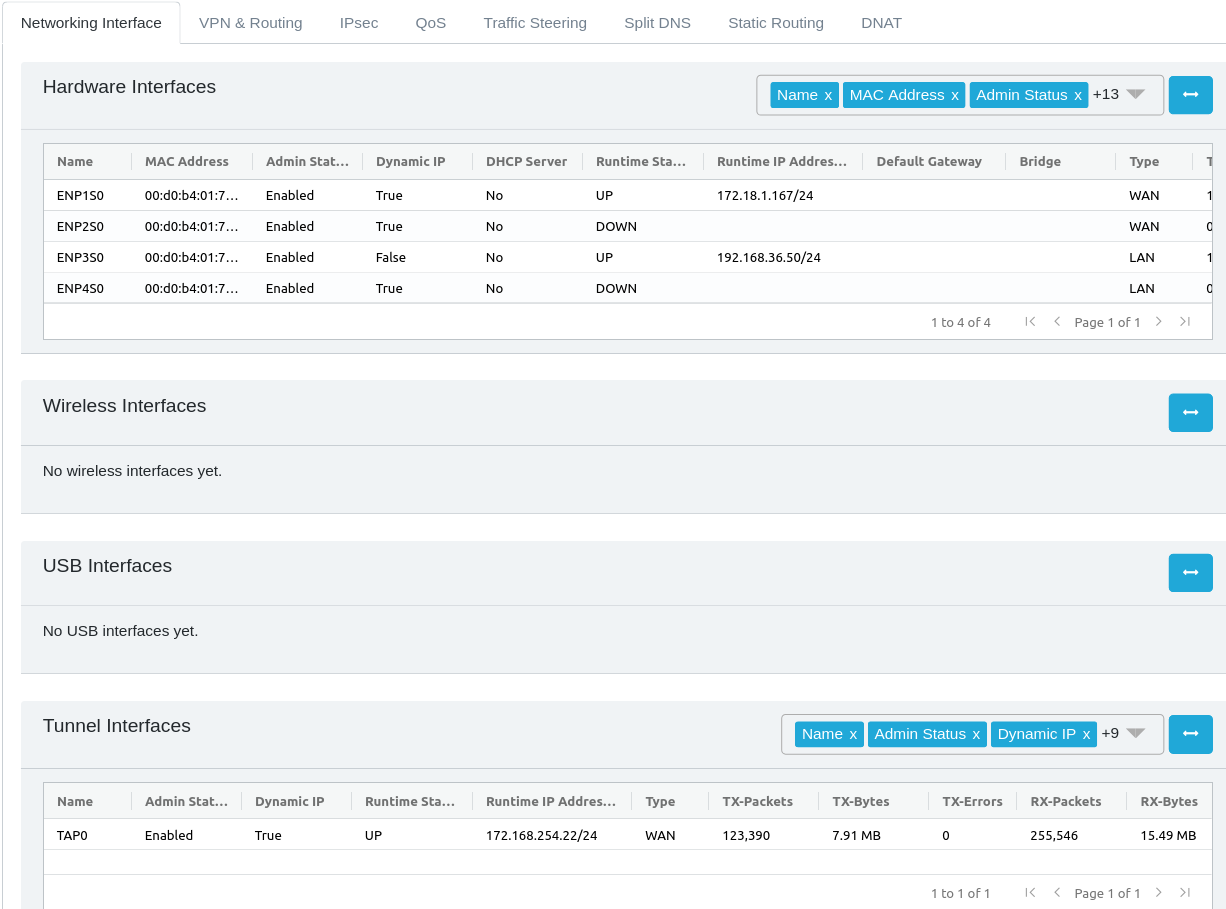
ChiefNET supports Ethernet, VLAN, Bridge, LTE and other USB-based network interfaces. In addition, the Network Interface tab on the Orchestrator WebUI displays tunnel interfaces used for site-to-site (i.e branch-branch or branch-HQ) connections.
Tunnel Interfaces
Tunnel interfaces are displayed on the 'Network Interfaes' tab with status and metrics, but are configured on their own tab titled 'VPN and Routing'. These tunnel interfaces are all enabled for OSPF-based dynamic routing by default and automatically, and are used for Enterprise traffic (i.e. site-to-site traffic)
IPsec Interfaces
IPsec interfaces are configured on their own tab titled IPsec for both IPsec server and IPsec client settings. IPsec interfaces are also used for site-to-site (aka branch-branch connectivity.
A special type of IPsec interface is 'Prisma' which is an IPsec client interface to the Prisma Cloud that offers advanced firewall capabilities. If your organization is interested in utilizing the Prisma connectivity, please contact the ChiefNET team for more information.
Ethernet Interfaces
- Description: ChiefNET supports Ethernet interfaces, with all ports offering gigabit speeds unless specified otherwise.
- Typical Use: Ethernet interfaces are commonly used for direct, high-speed connections to computers, servers, and other network devices.
VLAN Interfaces
- Description: VLAN (Virtual Local Area Network) interfaces allow for logical separation of networks within the same physical network.
- Use Cases:
- Segregating network traffic for enhanced security.
- Organizing network resources and traffic for different departments or project teams.
- Reducing network congestion by isolating broadcast domains.
Bridge Interfaces
- Description: Bridge interfaces are used to connect multiple network segments, operating at the data link layer (Layer 2) of the OSI model.
- Use Cases:
- Interconnecting VLANs or Ethernet ports.
- Extending the range of a network by connecting multiple LAN segments.
Port Configuration and Models
Default Port Configuration
- Standard Model: Comes with 2 WAN ports and 2 LAN ports.
- 6-Port Model: Features 6 Gigabit Ethernet ports, with the first two set as WAN and the remaining as LAN ports.
- Virtual-CPE and Cloud-CPE Models: These models support virtual Ethernet interfaces as defined by the hypervisor or cloud vendor.
WAN and LAN Ports
- WAN Ports: Configured as DHCP clients by default. They should be connected to the firewall or to the ISP devices towards the WAN side (MPLS, ILL, Internet, Broadband).
- LAN Ports: Typically assigned static IP addresses. Optionally, a DHCP server can be enabled. These should be connected to the LAN side devices.
Note that in some deployments, ChiefNET's WAN port is connected to the corporate firewall's LAN port, and the firewall is connected to the ISP devices. In other deployments, it is the opposite i.e. ChiefNET's LAN port is connected to the firewall and ChiefNET's WAN port is connected to the ISP devices. Both kinds of deployments are supported. However, in order for WAN features such as failover and load-balancing to work, ChiefNET will need to have direct layer-2 connectivity to the ISP devices.
Traffic engineering rules and Quality of Service (QoS) are primarily applied to traffic moving from LAN to WAN, considering WAN as a potential congestion point and to manage runtime costs.
Both VLAN and Bridge interfaces can be configured as either WAN or LAN interfaces, offering flexible network topologies.
IP addresses can be assigned to Ethernet interfaces, VLAN interfaces, or Bridge interfaces.
LTE Interface Support
- Built-in LTE: Availability depends on the product model.
- USB-based LTE: Supported through USB ports, typically provided by the service provider.
- Device Compatibility: Not all LTE devices are supported. Users must ensure that their preferred ISP's LTE devices are qualified by ChiefNET.
USB-based Interfaces
USB Based wifi and Ethernet network innerfaces are supported at this moment for diagnostic purposes only and are set up by ChiefNET support staff to help with troubleshooting.
Managing Network Interfaces via Orchestrator WebUI
On the Orchestrator webui, the Network Interfaces tab provides a number of tables, listing all physical Ethernet interfaces, VLAN, Bridge and LTE interfaces. Current status and statistics for each interface are displayed.
The user may provide a custom name and description for the interfaces to facilitate easier understanding of the network deployment. Each interface may be configured with the IP addresses either in the DHCP-client mode or a static-IP addressing mode.
It is possible to configure DHCP server as well on an interface when static IP addressing is used.
Cloud WAN
ChiefNET's main use case is a Cloud-WAN. When a customer purchases the ChiefNET solution, a cloud-WAN may be preconfigured for the customer. All CPE devices would then be part of the hub-spoke network exchanging routing information over secure overlay connections.
It is also possible to have overlay connections between any two branches, without using the Cloud WAN, using the on-prem VPN server feature. Typically in such a deployment, the on-prem server is configured at the HQ. In a single customer's network, multiple sites may host on-prem servers as well to realize a very flexible network topology.
On-Cloud Installation
ChiefNET's cloud-WAN is natively available on Digital Ocean and GCP (Azure and AWS support in the works). If cloud-wan is requested on GCP, the customer may then realize a world-wide network using GCP backhaul. The other public clouds also work in a similar fashion. The actual use of the public cloud for the cloud-WAN feature is transparent to the customer.
With the On-Cloud Installation method, all necessary backend services and databases are hosted on the public cloud and managed by the ChiefNET team.
If the customer purchases the On-Cloud installation, all of these services are provisioned by the ChiefNET team, ahead of time. The customer can even pre-provision the CPE devices even before deploying any of those on site or while the devices are en route.
On-Prem Installation
The entire suite of ChiefNET products is deployable on-prem or in a on-cloud infrastructure.
In this method, the backend services and the gateway are all installed on-premises by the ChiefNET team as a one-time service. The customer must provide the necessary VM (CPU, memory, disk, database storage) resources.
All backend services are maintained by the ChiefNET team for such tasks as software upgrade. Any specific customer services related to network configuration are treated as separate
High Availability
All ChiefNET components (CPE, backend services) support redundancy and high availability.
In addition to the HA/redundancy features, ChiefNET increases the overall high availability of customer connectivity, by supporting the following features - WAN interface/ISP network monitoring for failures, QoS, and SLA - Automatic WAN failover - SDWAN Tunnel monitoring and failover of the enterprise network through the best available ISP - Multiple simultaneous tunnels, including cloud tunnels, and on-premises tunnels - Redundant installation of the Orchestrator - Autonomous operation of each branch network - Advanced traffic steering rules to facililate Application Traffic Load-balancing and failover
Quality of Service
Typically a customer identifies an application and wants to assign a specific QoS to it.
ChiefNET allows you identify specific traffic flows based on any of the following attributes in a flexible manner.
- Source IP/subnet, Lists
- Destination IP/subnet, Lists. List of Domain Names, Groups of Domain Names
- Protocol
- UDP/TCP Source Port, Lists, Ranges
- UDP/TCP Destination Port, Lists, Ranges
The above parameters completely encompass all ways of identifying a specific set of traffic flows, that can be tied to applications.
The QoS necessary for those applications may be
- Real-time (i.e. lowest latency, with minimum bandwidth reservation)
- Rate-limited (i.e. only apply a maximum bandwidth to the flow)
- Minimum and Maximum BW specified (apply a minimum guaranteed bandwidth, as well as a maxumum allowed bandwidth)
If no QoS is applied, ChiefNET CPE applies a fair-queueing strategy so that all flows get equally allocated and no one flow gets more share than the other.
Real Time QoS Profile
For VOIP flows or media traffic, use real-time QoS profile. This QoS profile is applicable if
- your enterprise has VOIP gateways, IP PBX or video conferencing systems.
- any SIP/RTP/RTSP usage in any of your enterprise devices or cloud
All these protocols utilize a specific UDP port range for the audio/video/screenshare media flows. Your enterprise IT administrator can identify these flows and they should be configured under this QoS profile.
Also use this profile for - traffic to/from IoT devices - traffic to/from monitoring applications
Minimum Bandwidth
Apply a minimum bandwidth profile for traffic that are critical for your enterprise. Examples include
- Microsoft 365
- SAP/HANA access from branches to HQ or Cloud
- Google Docs
- Internal branch-to-branch traffic
Maximum Bandwidth
Apply a maximum bandwidth for those applications not critical to your enterprise. Examples include news sites, social media and gaming sites.
Some customers may choose to drop such traffic entirely (see Traffic Policy section).
The maximum bandwidth should be chosen carefully so that the applications do not suffer with too low a number. In those cases, one is better off dropping all or most such traffic, rather than having a poor user experience in all of those.
Traffic Policy
Traffic Policy (aka Traffic Steering, Traffic Engineering) is a set of features that allow you to determine how certain classes of traffic should be forwarded from your sites to the other sites or to the general Internet.
It combines traffic classification, filters, policy-based routing, and QoS in a user-friendly manner.
This section describes some of the specific use cases that could be configured using this feature.
All traffic steering is applied in only one direction, from the LAN ports to the WAN ports.
There is only one feature that works on traffic from the WAN ports to the LAN ports, which is DNAT or Dynamic Network Address Translation, and it is described in a different section.
LAN Traffic Filtering
If traffic from certain LAN segments must be discarded, specify the LAN port, IP subnet information or 5-tuple information and select 'DENY' as the action item.
In many cases, it is essential to discard traffic from some LAN ports so that they are prevented from accessing the Internet or even the enterprise traffic.
A very common use case is to specify a list of social network domains and discard those traffic. That way, your enterprise premises is not used for social network apps.
ChiefNET allows you identify specific traffic flows based on any of the following attributes in a flexible manner.
- Source IP/subnet, Lists
- Destination IP/subnet, Lists. List of Domain Names, Groups of Domain Names
- Protocol
- UDP/TCP Source Port, Lists, Ranges
- UDP/TCP Destination Port, Lists, Ranges
The above parameters completely encompass all ways of identifying a specific set of traffic flows, that can be tied to applications.
Application Traffic Filtering
Nowadays, applications are identified by domains. A malicious web application is typically avoided by entirely turning the domain off. A domain is under the administrative control of an organization. A single domain may result in multiple IP addresses/multiple hosts. Use the traffic steering feature to specify a list of domains or domain-groups to discard traffic to them, or to configure a specific quality of service to them.
WHen you need URL filtering, use domain-filtering. URL filtering is a means to avoid specific sites within a www domain. It was a feature mainly used when a single proxy is used to access multiple WWW domains, by attaching one URL suffix to each WWW domain/virtual host. Hence to turn off a single WWW domain/virtual host that supplies one application, URL filters were employed in the past.
From a security point of view however, it is best to avoid the entire domain, as it would be natural to assume that if one application is compromised, the others under the control of the reverse proxy are also under the same vulnerability.
For this reason, we highly recommend the use of domain filters instead of URL filters. While URL filters can satisfy short term needs, domain filters are more effective at better security.
Where URL filters are required in your own enterprise, we highly recommend the use of alternate solutions wherein the proxies employ the appropriate security mechanisms (e.g. SSO) to ensure that malicious users or malicious services are prevented in your network.
Enterprise-Only LAN or Systems
There may be machines on your LAN premises that must only be connected to the Enterprise network and not directly to the Internet.
In this case, specify the machine's IP or the entire IP subnet, and select 'ACCEPT' as the action. You will then have to choose the Enterprise network interface (i.e. the VPN tunnel interface). This is helpful when specific remote systems must only be managed from the enterprise network using secure transport methods.
This is typically the case with certain video surveillance camera systems, point-of-sale terminals, printers etc. that do not need access directly to the Internet.
Quality of Service
For certain VOIP traffic, or connections to certain domains such as Microsoft 365, you might want to specify a minimum bandwidth and a maximum bandwidth. These may first be specified as a QoS profile and the QoS profile may then be used in the Traffic Steering section.
Application-Specific Traffic Failover and Load Balancing
Part of QoS is the ability to be resilient when the network fails on the ISP side. In this case, you may configure the primary WAN port and the secondary WAN port. You can also configure the specific criteria such as the latency, jitter or packet loss thresholds to initiate a switchover to a better-performing WAN port.
Exclusive WAN Port Selection
For certain classes of traffic you can choose a specific WAN port to be used, and only that WAN port. A common use case is when you have a backup WAN port that should not be overwhelmed with low-priority or unimportant traffic when the primary WAN port fails. This is typically the case when the backup WAN port is expensive for the amount of bandwidth and the data allowance.
Default Traffic Failover
If there are multiple WAN ports, ChiefNET continuously monitors them for Internet access and switches over to the working WAN port. This ensures that there is at least one Internet-access port even if no traffic steering rules are configured.
Additional Notes
There are many use cases as mentioned above for the integrated traffic steering feature. We highly recommend that all of the features be documented ahead of time during the proof-of-concept phase to ensure that the implementation meets the requirements.
Configuring a Traffic Filter to Discard
Configuring a traffic filter implies that there is a class of traffic from the LAN ports that should be discarded, without getting forwarded to the WAN side.
This is done on the traffic steering section
- Select the interface from which the traffic originates
- Specify the 5-tuple information such as source subnet, destination subnet, IP protocol, source port range and the destination port range. Not all information is mandatory. The traffic classification can be as specific as necessary.
- Select DROP from the 'action' drop down menu.
When the selected traffic is 'dropped', the configuration portion related to failover, load-balancing, or QoS will be disabled.
Configuring WAN Port Load Balancing
When there are two ISPs on a given CPE, and there is a need to utilize both the ISPs, one on each WAN port, the CPE device can be configured with 'load balancing' for any classification of traffic.
- Configuring the 5-tuple parameters that identifies the class of traffic
- Select "ACCEPT' as the action
- The traffic policy portion of the configuration screen will be enabled. Here select the load-balancing tab, so that the selected class of traffic is load-balanced.
It is possible to configure multiple such classification rules, and select the same 'load balancing' configuration.
The CPE figures out multiple microflows within the selected class and automatically chooses the WAN port that is currently more available. All load-balancing is done at the microflow level, and not at the packet level to avoid unnecessary packet out-of-order/reorder issues as those will hamper all the applications in an enterprise network.
Configuring Primary/Backup WAN Ports
Similar to the above, for a traffic class, it is possible to configure the primary WAN port and the secondary WAN port.
The configuration is very flexible. For some classes, the primary could be WAN-1 and secondary could be WAN-2. For some other classes, the primary could be WAN-2 and the secondary could be WAN-1.
It is even more flexible in another aspect. It is possible to configure an exclusive WAN port so that the traffic stream is discarded if that WAN port is not available. THe main use case here is that for non-important traffic, the expensive or low-bandwidth backup links should not be used. In most cases, the backup links should be used only for highly important traffic. By configuring the traffic streams like so, it is possible to ensure that the customer's critical traffic streams have primary+backup available at all times.
QoS/SLA Based Traffic Steering
It is possible to configure quality-based selection of the WAN port for a given trafic class.
For example, there may be a class of traffic that requires a low latency WAN port if available. In order to do this, the required latency may be configured in the Primary/Backup configuration tab. The CPE software automatically put the traffic on that class on the WAN port that is the most suitable, given its latency/jitter/loss parameters.
A backup WAN port may still be assigned and that will be used in case the primary WAN port is not available.
This feature is very unique to ChiefNET and is useful for specialized applications. The main use-case for this is that for some class of traffic, the preference should be given to some WAN links that have a specific SLA obtained from the ISP.
Routing
All ChiefNET devices come preconfigured with dynamic routing among all the branch sites. There is no action needed from the user to configure dynamic routing.
As soon as the ChiefNET CPE device is powered up, and connected to the Internet, the user will notice that the LAN devices on all the sites are able to communicate with each other, based on the traffic engineering rules.
It is still possible to fine-tune certain parameters for highly-specific and uncommon use cases.
Static Routing
Static IP routing is a method of network routing where routes are manually configured and set up by a network administrator. Unlike dynamic routing protocols that automatically adjust to changes in the network topology, static routing requires the administrator to manually update the routing table whenever a change occurs, such as adding or removing a network segment.
On ChiefNET, it is not necessary to configure static routing at all. However, in some highly-specific use cases, it is possible to add some static routes.
Redistribution: It is possible to redistribute static routes, into the dynamic routing protocol so that these static routes are known to other devices in the cloud WAN as well.
Static routes are specific to a device.
- Click on the device that needs the static routes.
- Select the "Static Routing' tab.
On this page, you will see a flag titled, 'Redistribute'. Enable it when you want the static routes to be advertised (aka redistributed) over the dynamic routing protocols, so that the other devices in your cloud-wan (i.e. in other sites) also need to know about these static routes.
The list of configured static routes are displayed on this page.
You can add, delete or edit the static routes by clicking the appropriate icons on the table. Online help is available by selecting the ? icon.
Current Route Table
This page also displays the current routing table on ChiefNET's device. This is useful for troubleshooting purposes. A customer administrator does not have to know much about this detail.
Split Horizon DNS
This is a feature where it is possible to designate a unique set of DNS servers for specific domains.
The main use of this feature is to avoid the use of ISP's DNS servers for corporate hosts and domains. This is because the internal DNS lookups need to be kept private.
Example
Say a customer's name is Blue Cotton Pvt Ltd, domain name is bluecotton.com.
This customer has four locations, Chennai, Delhi, Mumbai, Cochin. Each location may have their own ISP connections. However, DNS lookups for internal hosts like sap-db.bluecotton.com. The IP address of this host is configured by Blue Cotton IT department and not by the ISP.
The DNS servers for the hosts on this domain and for other DNS records (like TXT, MX, SRV) are also kept on the internal DNS servers. Nowadays, the organizations use DNS servers on their cloud VPC (e.g. Route-53 of AWS). So, it is necessary to configure the corporate's OWN DNS servers for the domain bluecotton.com
Configuration Steps
- Choose the device, and the Split DNS tab.
- Configure the domain name and the DNS servers for that domain.
If the configured DNS servers return NXDOMAIN (No such domain), the ISP routers are not consulted. This behavior keeps the DNS lookups private so that external devices don't keep track of the internal DNS operations, internal host names and IP addresses to prevent or reduce the security incidents.
Destination NAT (DNAT)
Destination NAT, or DNAT in short, is used when there is a server on the INSIDE network that should be exposed to the OUTSIDE clients.
A typical use case may be there is a web server at the HQ, but the clients from the public Internet need to access the web server using the standard ports. This would then require opening the relevant ports on the CPE device.
ChiefNET's DNAT feature can be used for that purpose.
DNAT from Internet Ports
ChiefNET's DNAT feature can be abled on the WAN ports that are connected to your ISPs. Anyone on the Internet can be allowed to access certain servers. Note that this is not always secure. For internal use however, DNAT within the Secure SDWAN network, described below, may be used.
NOTE
Destination NAT is supposed to be used only as a last resort. Exposing an inside server to the outside clients is typically NOT done these days using DNAT. We highly recommend that the server be moved to the cloud and enforce strict content rules to isolate the servers from the rest of your INSIDE network.
DNAT within Secure SDWAN Network
All ChiefNET devices are connected together using the secure SDWAN network. It is still possible for some sites to have private or overlapping address spaces. Those are essentially non-routable or NAT'ed sites. It is still possible to house servers inside such private networks, and use ChiefNET's DNAT inside the SDWAN interface.
This allows for your sites with private address spaces to be connected to the other sites, and still support DNAT with full security within your corporate network.
IPsec
ChiefNET supports IPsec feature to connect to other SDWAN/SASE/Cloud-SASE or to accept incoming IPsec connections from such devices.
With the support for both IPsec client and IPsec server, ChiefNET can be used for - site-to-site secure SDWAN connectivity - interconnection between ChiefNET and Palo Alto Prisma Cloud - interconnection between ChiefNET and Firewall devices from Sophos, CheckPoint, FortiNET, and Palo Alto - interconnection between ChiefNET and Public Cloud VPNs like AWS CloudWAN, Azure CloudWAN etc to expand the ChiefNET globally.
IPsec Server Mode and IPsec Client Mode
ChiefNET can support IPsec server mode and client mode simultaneously.
In the server mode, ChiefNET CPE listens to the incoming IPsec connection requests from other IPsec clients and establishes them based on the configured settings.
In the client mode, ChiefNET CPE is configured as a client and tries to connect with an external Prisma cloud.
Palo Alto Prima Cloud
A number of advanced firewall features such as content-based filtering, URL filtering, email scanning, attachment scanning etc. are available as part of the Palo Alto Prima Cloud with which ChiefNET has a partnership offering.
Customers will need to purchase Palo Alto Prima cloud access separately. ChiefNET team can manage the Prismal Cloud features for the customers as part of a separate managed access bundle, that is not included in ChiefNET pricing.
IPsec Configuration
IPsec client and server mode are configurable with a shared password setting.
Edge Device High Availability
One of the major features of ChiefNET is that they can be configured as a redundant pair for ensuring high availability.
Two devices may be deployed at a customer location and each device monitors the other. When an interface or the entire device (e.g. due to a power outage on that device) fails to work, the other device takes over.
Edge Device HA is useful to handle device failures as well as network interface failures. When handling network interface failures, even if one network interface fails, the other device is configured to take over entirely. This ensures that all the services are kept alive at all times with Edge Device HA.
Additional Notes
In addition to the HA/redundancy features, ChiefNET increases the overall high availability of customer connectivity, by supporting the following features. - WAN interface/ISP network monitoring for failures, QoS, and SLA - Automatic WAN failover - SDWAN Tunnel monitoring and failover of the enterprise network through the best available ISP - Multiple simultaneous tunnels, including cloud tunnels, and on-premises tunnels - Redundant installation of the Orchestrator - Autonomous operation of each branch network - Advanced traffic steering rules to facililate Application Traffic Load-balancing and failover
Security
DNS Filtering in Modern Networks
Introduction to DNS Filtering
DNS filtering is a powerful technique used to control access to internet domains by intercepting and analyzing DNS queries. By defining policies to block or allow specific domains, DNS filtering enables organizations and individuals to achieve enhanced security, productivity, and compliance.
ChiefNET integrates DNS filtering with curated blocklists to provide flexible, robust domain filtering for diverse use cases. These blocklists categorize domains into meaningful groups, ensuring efficient filtering and enabling fine-grained control over internet usage.
Configuring DNS Filters
All DNS filters are set up on every device belonging to an organization.
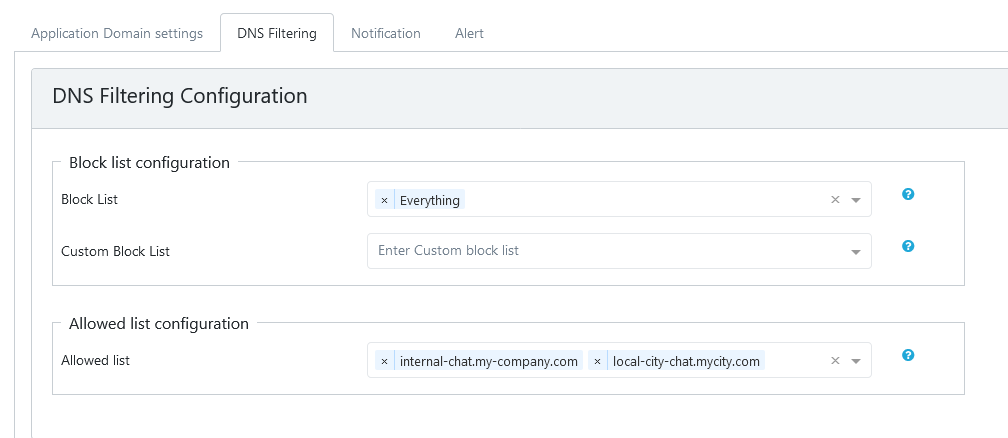
- Log in as a Customer Admin, and navigate to "Settings" and then to "DNS Filtering"
- Here select the categories you want to block one at a time. Each list is called a blocklist because it lists the domains that should be blocked from getting resolved.
- Each blocklist consists of a number of domains that are considered as a bad domain or a malware domain or something that is unwanted. If you wish to block all bad domains in one shot, select Everything as the domain list to be blocked.
- If there are domains that are essential for your organizations and if they are part of the domain blocklist, type in those one at a time, on the 'Custom Allow List'. These domains will be resolved as appropriate without getting blocked.
- If there are additional domains that should be blocked, enter those domains, one at a time on the "Custom Block List".
- All the blocklists are are updated periodically on all devices of all organizations automatically.
- Wildcards are not supported in the Custom Allow List or Custom Block List.
- Ensure that the changes are saved to the cloud.
Example Configuration Screen Capture:
Domain Classifications and Descriptions
The following categories represent the classifications supported by the blocklist project used in our product. Each category is carefully curated to address specific use cases.
Note that these are general descriptions. The domain categories may change over time. ChiefNET automatically updates the domain lists and provides new categories with curated lists. These lists are shared worldwide for safe use of the Internet.
- Malware
- Description: Domains known to distribute malicious software such as viruses, ransomware, and trojans.
- Purpose: Protects against threats by preventing access to sites hosting malware or exploiting vulnerabilities.
- Phishing
- Description: Websites designed to steal sensitive information by mimicking legitimate entities.
- Purpose: Shields users from credential theft and fraudulent activities.
- Spyware/Adware
- Description: Domains associated with software that monitors user behavior or serves intrusive ads.
- Purpose: Ensures user privacy by blocking tracking and advertising domains.
- Adult Content
- Description: Sites hosting explicit or adult-only material.
- Purpose: Implements parental controls and ensures family-friendly environments.
- Social Media
- Description: Platforms such as Facebook, Twitter, and Instagram.
- Purpose: Enhances productivity by limiting access to non-essential services.
- Streaming and Entertainment
- Description: Domains providing video, audio, and gaming content (e.g., YouTube, Netflix, gaming servers).
- Purpose: Manages bandwidth usage and reduces distractions in professional or educational settings.
- Cryptocurrency
- Description: Domains related to cryptocurrency trading, mining pools, or exchanges.
- Purpose: Mitigates unauthorized cryptocurrency mining and prevents access to risky trading platforms.
- Health and Wellness
- Description: Websites offering medical advice, health products, or wellness content.
- Purpose: Blocks unreliable or pseudoscientific sources and ensures access to trusted health information.
- E-commerce
- Description: Online shopping portals and marketplaces.
- Purpose: Controls access to shopping sites to manage spending or enforce organizational policies.
- News and Media
- Description: Domains providing news articles or blogs.
- Purpose: Filters biased or controversial content and curates trusted sources for consumption.
- Advertising
- Description: Ad networks and domains used for serving advertisements.
- Purpose: Blocks intrusive ads and improves browsing performance.
- Trackers
- Description: Domains that collect user data for analytics and tracking purposes.
- Purpose: Enhances privacy by preventing data collection and user profiling.
- Custom Categories
- Description: User-defined categories tailored to specific organizational or personal needs.
- Purpose: Enables bespoke filtering to accommodate unique use cases, such as partner domains or project-related portals.
Application Control for Security, HA and QoS
ChiefNET has an integrated Application Control mechanism wherein one can define a list of domains into applications.
The applications are all predefined in a default set. Custom applications may be added for an organization.
For each device, the application can be configured in a Traffic Policy/Traffic Engineering rule.
Configuring Application Control
To configure the applications, navigate to "Settings" and then to "Application Domains". Here the list of configured applications may be seen. Existing application domains may be edited or new applications may be added.
After verifying that the application is configured, proceed to a device and configure the appropriate Traffic Engineering policies.
Choose the application as the destination and proceed to configure the overall policy-rule (ACCEPT or DENY). Thereafter, proceed to configure the HA and QoS behavior for that application.
- choose an overall policy whether to accept or deny the application from your enterprise.
-
If 'DENY' is chosen as the overall policy, all traffic to that application will be discarded. If the traffic is to be accepted, proceed to configure additional policies for that traffic.
-
failover/load-balancing for that application
- specific threholds for each WAN interface on packet loss/delay/latency parameters specific to that application
- QoS profile for that application for each WAN port
The integrated Application Control mechanism is extremely powerful and flexible at the same time. ChiefNET comes preconfigured with a large number of well-known applications. Our typical customer bases uses it to drop traffic to unwanted domains as well as to offer specific QoS behavior as noted above.
ChiefNET as DNS Server
In order for Application Control to work, all DNS must be performed by the ChiefNET CPE. If any device or application on premises uses a DNS server and bypasses ChiefNET CPE, Application Control policies will not work.
The customer must ensure that, by policy, the devices within their organization do not use any DNS servers other than ChiefNET CPE's IP.
ChiefNET also automatically forwards/traps the DNS requests on some well-known protocols and ports. However, additional custom rules may be necessary if any device uses unknown DNS servers or DNS-over-HTTPS.
Monitoring
Monitoring Overview
Monitoring of ChiefNET CPE is done with the use of the following tools.
- Device status dashboard
- Notifications received by email, Telegram
- Monitoring Specific Features on WebUI
Monitoring Dashboard
Device Status Diagram
For every device, there is a device status diagram available after clicking the 'Monitoring' tab when viewing the device.
The diagram indicates the various important device networking components such as the LAN, WAN ports and the tunnels. It also indicates the status of the ISP links, LAN links and the tunnel links. It indicates the quality of the links as well.
Port / Tunnel Status
Each port and tunnel status is visible. Clicking on a port or tunnel will let you visualize advanced statistics and graphs.
Notifications and Alerts
ChiefNET monitors for a number of possible abnormal conditions and raises events. The events cover a number of areas of the ChiefNET device.
An event is either If you are a customer administrator, you can set up the alerts and the thresholds. These alerts are for you to monitor the system, and are not always indicative of a failure. The messages indicate whether a problem was detected. For some problems the ChiefNET's device or the orchestrator automatically takes a failover approach and there is nothing for you to be done. For some other problems, the message indicates whether the administrator should review.
For each alert, you can set to receive the notifications by email or just stay on the webui. All alerts, no matter how they are delivered, are available on the WebUI and are kept upto 30 days. Alerts older than 30 days are deleted automatically.
Viewing Alerts on WebUI
Once you log in as a customer administrator, the alerts can be seen by clicking the bell icon on the top right corner section of the WebUI. A new section will open up on the right side of the WebUI screen.
Scroll down on the right-side section and click on 'View more' for details and advanced filtering. This will show a table of all the alerts, with their timestamps, the alert type, the device where the alert originated and a description.
Filters
Filtering may be done based on the kind of the alert.
- All - all notifications are displayed
- Alerts - Only those that are of concern are displayed under this filter.
- Device Configurations - All configuration changes are logged and displayed under this filter.
- Device Provision - If new devices are added to the netweork, they are displayed under this filter.
- User Activities - All user login/logout events are logged under this filter.
For each filter-type displayed as a horizontal bar, the time duration may be selected - Today - Yesterday, - Last 7 days - Last 30 days - This calendar month - Custom Range
The red-colored superscripts indicate the total number of events under that category.
Additional Tips
The table can be exported as a CSV file to help with reviewing, troubleshooting or auditing purposes.
Additional actions such as column-level filtering, whole table search, deleting a specific event are all available. These features are similar to those found in other tables of the ChiefNET WebUI.
Notification by Email, Telegram
On the left pane, choose 'Settings' and click on 'Notification' tab to manage how you want to get notified when events occur. You can also set the thresholds for some notifications to identify conditions that would be of concern.
The default thresholds and the notification settings are apt for almost all customer deployments. Below is a description of those notifications, to help with customization, if needed.
Network Events - Summary
The following table summarizes the list of all events related to the networking aspects of ChiefNET, LAN/WAN ports and links and the network quality.
| Alert: WAN Interface Bandwidth Utilization | WAN Interface BW > 70% |
|
| Alert: WAN Port Status | A WAN Port is operationally down (i.e. the physical link is down) |
|
| Alert: WAN Link Quality | System detected packet loss on the WAN links |
|
| Alert: WAN IP Change | IP Address of a WAN Port Changed |
|
| Alert: WAN Failover | Traffic switched automatically from a non-working port to a working port as configured |
|
| Alert: VPN Status | a VPN/SDWAN Tunnel Link is down. |
|
| Alert: VPN Link Quality | VPN Link quality is poor due to higher than expected packet loss. |
|
| Alert: Tunnel WAN Change | A VPN/SDWAN tunnel changed from one WAN to another as part of a failover |
|
| Alert: Tunnel Latency | Packet latency on a tunnel is > 3s |
|
| Alert: LAN Port Status | A LAN port is operationally down (i.e. the physical link is down) |
|
| Alert: Ping Latency | Ping packet latency > 3 seconds |
|
Security Events - Summary
The following table summarizes the events related to the overall access controls and management security of ChiefNET.
| Alert: User Activity | User login/logout/registration events |
|
System Events - Summary
The following table summarizes the system-level events related to resources within the physical/virtual CPE device itself, such as the CPU/memory/disk resources.
| Alert: System Power | System power outage was detected |
|
| Alert: Memory Usage | System Memory usage is > 70% |
|
| Alert: CPU Temperature on a Physical CPE | Temperature > 85 deg C |
|
| Alert: Device configuration | n/a |
|
| Alert: Device provision | n/a |
|
| Alert: Disk Usage | Current disk usage > 90% |
|
Security Related Events
Device Configuration
Actions:
- This notification is raised when the device configuration has been changed by a user, which is typically a customer-administrator, or a customer-user. In rare cases, a device may be configured by support personnel at ChiefNET.
- The customer must ensure that this was done by one of their own authorized users, and not by someone else. The customer must keep their accounts with safe and secret passwords. If this is suspected to be unauthorized, immediately contact all of your peers and conduct a security audit to see if any of your other devices or systems are compromised.
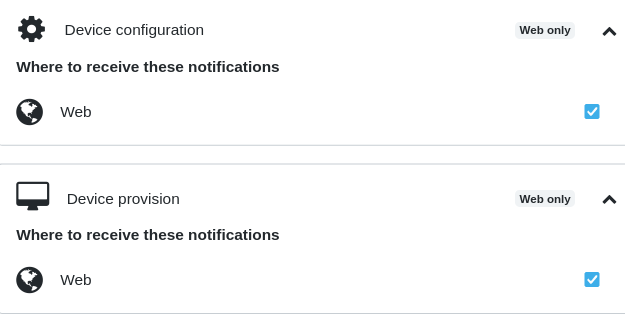
Device Provision
This notification is sent when a new device has been physically connected at a site and is ready for use.
Actions:
- No action as a result of this notification.
- This is an informational event.
- If you get this notification, but no device was authorized to be connected to your enterprise network, it should be considered a security breach. The tech support team will disable the device until the customer confirms that they indeed want the device back to its provisioned state.
System Level Events
CPU Temperature, System CPU Usage, User CPU Usage
Actions:
- When the CPU temperature is high, or when the CPU usage is high, it is almost always indicative of an issue such as consecutively under attack on a WAN interface or a process is abnormally (unexpected defect) hogging the CPU.
- Check the monitor dashboard for real CPU usage over the last hour, day or week to find a pattern.
- Check packet statistics on each interface to see if any interface is seeing abnormally high packet traffic
- Check the process table to find the top processes hogging the CPU
- Check the 'top talkers' and 'top applications' to find if there is any specific LAN host or application causing abnormal traffic, if any.
- Check the environmental conditions if they are warmer than what the datasheet indicates.
- If the CPU usage is low, but the temperature is high, the cause could be environmental conditions or undetected hardware defect.
- ChiefNET only delivers fanless, low-power physical CPE to accommodate small/medium business environmental conditions. Still, the location must have adequate airflow or cooling capability.
Screen Captures:
- CPU Temperature:
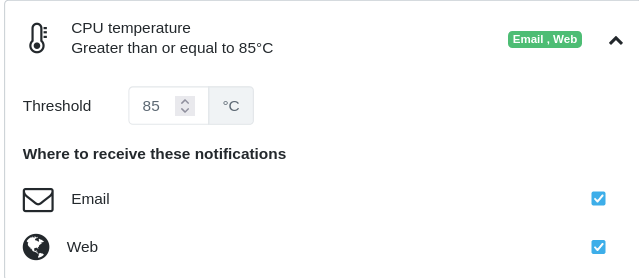
- System CPU Usage:
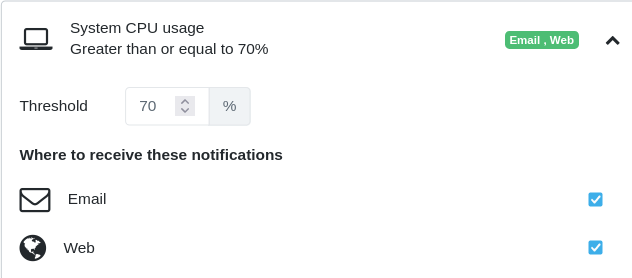
- User CPU Usage:
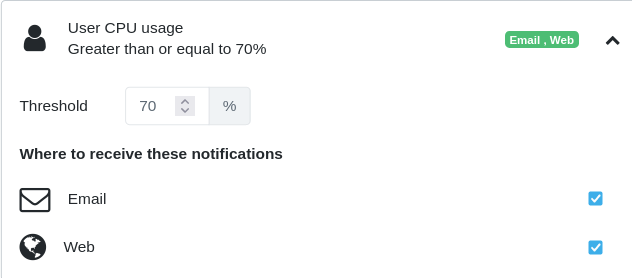
Disk Usage
This alert is raised when the disk usage on the CPE device is more than 90% of the capacity.
Actions:
- Disk usage increases typically due to unmonitored log files. All logging is monitored and files are rotated periodically to avoid running out of disk space.
- When the disk usage alert is raised, it is almost always indicative of a defect that should be addressed immediately by the development team.
-
The backend support team can monitor the disk usage of all devices on the dashboard and watch for any device's usage exceeding 50%, well before the alerting condition is raised. This way, the issue could be addressed before it becomes a real problem.
-
Device Disk Usage:
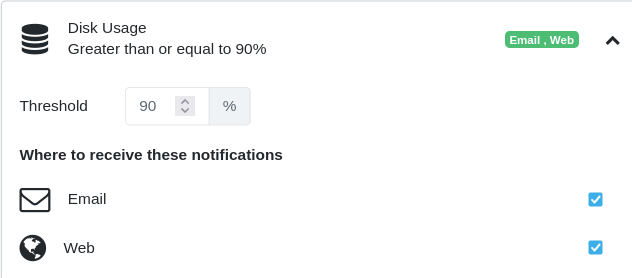
Network Related Events
WAN Link Quality, Tunnel Link Quality
ChiefNET continuously monitors all the WAN ports and tunnels for the quality of the network, in addition to monitoring those for the link status itself.
For the WAN ports and for tunnels, link quality is measured with the use of probe packets. Typically no operator intervention is necessary for small packet losses as the applications will usually recover from such errors on their own. These low-level packet losses are due to congestion in the ISP networks.
When packet losses exceed 10%-11%, the impact to the applications becomes more apparent. ChiefNET detects these conditions on each WAN and tunnel and raises an alert 'link is unstable'.
When packet losses exceed 90%, the link is considered unusable as it will certainly impact all the applications.
Actions: - When this alert is raised, it is usually a result of the ISP network link outage or packet losses in the ISP network. - In these cases, a configuration of the traffic policy thresholds will automatically take effect. Hence even when the alerts are raised, ChiefNET handles the traffic by rerouting it to a more stable WAN network.
Screenshots of the related settings:
- WAN Link Stability
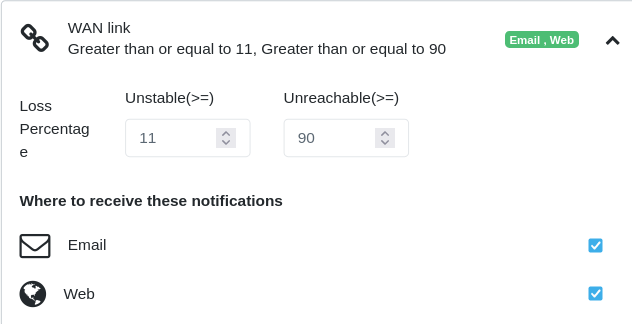
- Tunnel Link Stability and Status
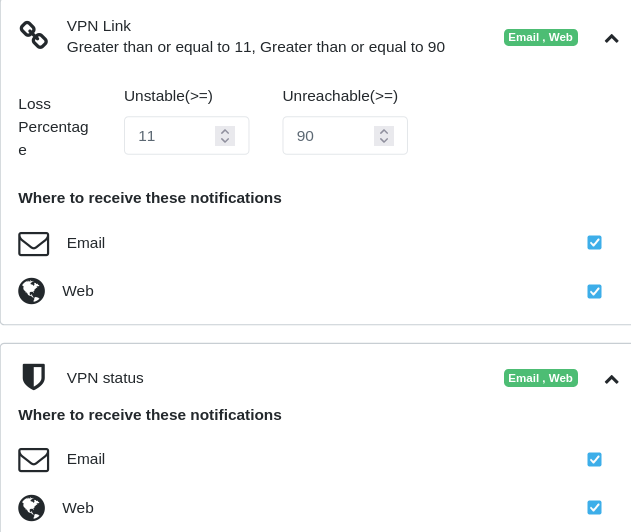
SDWAN Tunnel Latency
ChiefNET monitors the round-trip time on each tunnel by monitoring the RTT using ICMP probes. An alert is raised if the latency exceeds 3 seconds by default. The threshold is configurable to override the default value.
Actions:
- When this alert is raised, it is usually a result of the ISP network link outage or packet losses in the ISP network.
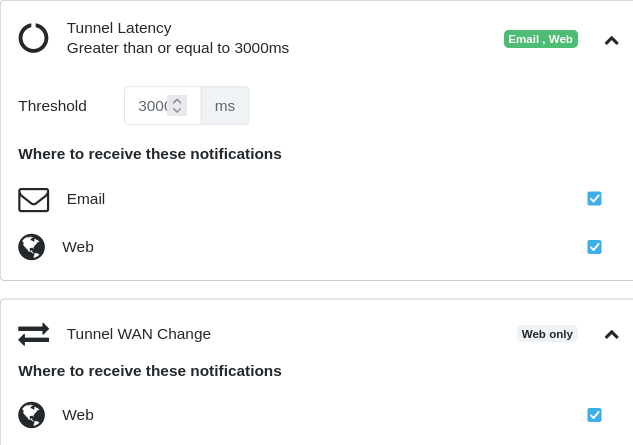
Ping Latency
In some cases, it is desirable for the customer to monitor the network quality by monitoring the ICMP round-trip time to a configured destination that may be specific to the customer's network. For instance, it may be desirable to monitor network latency between a branch computer and the database server at the HQ.
The customer may configure such a destination on a ChiefNET CPE which then is monitored continuously using ICMP. The threshold may be configured to override the default of 3 seconds.
Actions:
- If the ping latency alert is raised, it is usually a result of the ISP network outage.
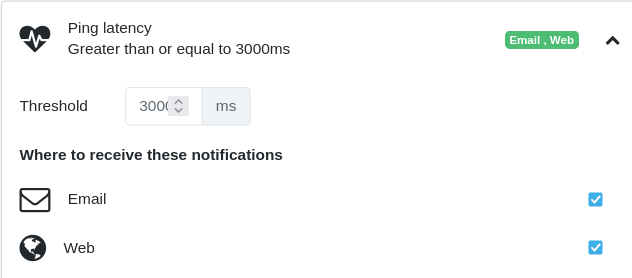
Bandwidth Utilization
All WAN interfaces are monitored for their utilization. Most ISPs do not provide you with a fixed bandwidth. They provide you with a nominal bandwidth on a link, but the actual available bandwidth varies drastically. We have observed that the actual available bandwidth varies even 3x or 4x that of the promised bandwidth and at other times it can be as low as 10% of the promised bandwidth.
The bandwidth range also varies significantly whenever ISPs take different routes or different peers on the Internet. Due to its unpredictability, we advise that the customers pay attention to the service levels of their applications instead of this number.
However, ChiefNET provides the bandwidth utilization solely for the purpose of understanding the current quality of service on the WAN links.
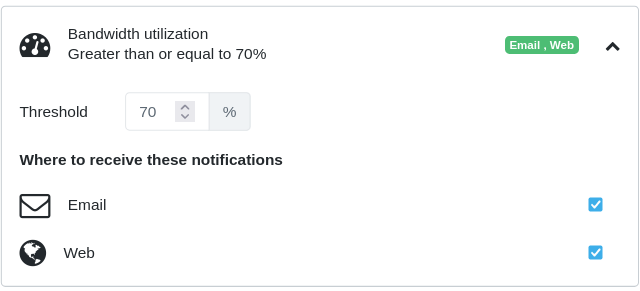
Actions:
-
The alert is informational. It is not indicative of any error. The customer should see if the utilization is expected to increase based on the characteristics of their users and determine if the link bandwidth should be upgraded. As an example, if the link bandwidth usage is frequently at 90% and if some users are also experiencing poor Internet access quality around that time, the correlation is likely that the WAN link bandwidth should be upgraded.
-
When the alert is raised, check the monitor dashboard for 'top talkers' or 'top applications' to find out if there is a specific LAN host that occupies the bandwidth.
-
The concern becomes real only when the ISP enforces the bandwidth limit. In most cases, the ISPs indicate a nominal bandwidth but allow as much as they have the bandwidth. In those cases, we recommend that this alert be disabled on the UI. If it is not disabled, one will see alerts raised to more than 100%. The system won't artificially limit the usage percentage to 100%.
Troubleshooting Network Issues
This section describes some of the troubleshooting measures that could be undertaken by technical personnel with various levels of expertise.
The most typical statement of an issue, as applicable to ChiefNET's place in the network topology, is that the branch-branch traffic does not work. The second most typical statement of the issue is that Internet is not reachable.
However, there could be many underlying causes and ChiefNET provides the following tips and measures.
Verify WAN Link Connectivity
ChiefNET's WAN ports are typically connected to the ISP-provided devices. It is often best to check your ISP's portals, alerts and notifications to check for outages in their network service. In the event this information is not available or reliable, the following could be done.
- Access the orchestrator webui from a mobile phone with LTE or on any system that has Internet access.
- Check alerts and notifications which would indicate if the WAN links are down. A WAN link is declared down, if a ping response is not received for an interval of 30 seconds.
- ChiefNET keeps trying to check if the WAN link comes back alive by sending periodic ping probes.
If one WAN link is down, and if failover feature is configured, ChiefNET will automatically switch traffic over to the other WAN link if available.
If failover and load-balancing are both configured, traffic will continue on the operational WAN link and will not be forwarded over to the failed WAN link. In this case, it is possible that the traffic may exceed the capacity of the operational WAN link (as that would have been the reason to configure load-balancing). For smoother operation -- configure QoS on the WAN links so that the traffic is shaped at the application-level -- configure exclusive traffic forwarding so that low-priority traffic is allowed on some WAN links only and discarded if those WAN links are not operational. This way, only the high-priority traffic is forwarded on the available/operational WAN links.
Firewall Configuration Changes
Verify the the changes done on firewalls possibly between ChiefNET and the ISP are not blocking the traffic in any way.
ChiefNET Alerts and Notifications
When the WAN links are found to be failed, ChiefNET sends alerts/notifications as emails. Watch for such notifications and alert your ISP immediately for customer support.
Debugging ChiefNET
If ChiefNET device is suspected under such conditions, the following should be done. - Access the webui orchestrator and verify that the device is reported as 'up' with green background. This indicates that the CPE device gets connected to the Orchestrator on its management connection (HTTPS based connection). - Verify that there are no alerts. - Check the statistics on the WAN ports and the LAN ports to see if they are increasing.
Customer Support
ChiefNET customer support team continually monitors the customer networks for new alerts and uses the backend monitoring tools to isolate customers' network issues.
Frequently Asked Questions
Why is the ChiefNET CPE not able to reach the Internet through the firewall?
- Check mac-address whitelist on the firewall.
- Check logs on firewall (if any) to see if CPE device is blocked for any reason.
Many a time, we have noticed that the customers modify the configurations of the firewalls which sometimes blocks ChiefNET. Use the standard network troubleshooting tools like ping/traceroute to isolate the problem.
Always check the firewall logs and events to see what are blocked for additional clues to isolating the problem.
Do firewalls need to be configured for ChiefNET?
In some organizations, the IT department hard-codes the mac-address into the firewalls, so that only specific devices are allowed to go through the firewall. This implies that the customer would have to configure the mac-address of ChiefNET in the firewall configuration.
Why is the Internet slow?
- In most cases, the Internet is slow due to the service provider's network and not necessarily with any of the equipment online.
- If traffic bandwidth is suspected of slowing down the Internet for critical applications (e.g. branch locations trying to update the inventory and sales data at the HQ), it can be resolved by configuring QoS for critical applications. ChiefNET's QoS features provide miinimum bandwidth quarantee, as well as limit the maximum for a given class of applications.
Use Cases
Overview of Use Cases
This section contains a small selection of the known use cases targeted by ChiefNET. Since ChiefNET is made to be an extensible edge solution for multi-location organizations that are growing, it is easy to configure and deploy ChiefNET for secured connectivity.
Here are the examples:
- Retail CCTV Monitoring
- Enterprise Database/ERP Software Connectivity from Branches
Use Case: CCTV Security
Several retail and manufacturing sites use CCTV or IP cameras for surveillance or quality monitoring.
For instance, a retail location may use CCTV for loss prevention or to ensure the safety of the people inside.
A manufacturing plant may use CCTV to verify the proper assembly of a product.
The shipping/handling division of a warehouse may use CCTV to ensure that all components are included in a shipping box, and in the event of a customer issue, proof of shipping can be obtained from the recorded video streams.
Problems Faced by CCTV Deployments Today
In all these cases, the monitoring personnel are usually at a central or remote location, different from where the cameras are located.
Most customers also employ an on-premises NVR to record the video streams, and there is a need to observe the locations live or to replay the recorded video from the NVR.
IT staff today open the RTSP/UDP ports for each camera or for the NVR. The cameras and NVR are not known to be secure; in fact, many are known to have vulnerabilities as their software is not often updated.
The cameras and the NVR typically have simple usernames and passwords. They do not support advanced high-security access control features. Those that do are very expensive to install and maintain.
When these ports are opened to the Internet, the video streams may become available to unauthorized individuals who may have stolen the credentials of the organization's staff.
To keep the video streams private and to avoid malicious activities, it is essential to keep the traffic confidential and private to the organization's network itself.
ChiefNET Solution for Confidentiality and Privacy
This is where ChiefNET is immensely helpful in a zero-provisioning setup. ChiefNET interconnects the monitoring staff's locations, IP camera locations, NVR locations, and others in a private network using ChiefNET's secure network. With ChiefNET, there is no need to open any public ports of any equipment in any location. All these locations will then be able to communicate with each other.
Since there are no open ports to the Internet, security is vastly improved. Even if a malicious third party knows the credentials of some staff, they cannot access the video streams unless they are on the locations interconnected by ChiefNET.
Additional Benefits of ChiefNET
ChiefNET also provides benefits by limiting which sites or specific computers can access a particular camera or the NVR.
Furthermore, ChiefNET supports a fine-grained QoS feature that allows one to prioritize CCTV traffic even when there is congestion.
Comprehensive Multi-Site Solution
In many retail locations, it is necessary to have connectivity to the headquarters or the cloud so that branch computers and applications can access centralized databases, corporate ERP, and other billing/finance services.
ChiefNET addresses all these concerns in a single integrated solution that is easy to deploy. The organization's networking is transformed into a much simpler problem due to the ease of provisioning and the simplicity of the entire solution.
Use Case: Retail Operations
A retail company with numerous locations across the country faces challenges in maintaining up-to-date billing and inventory records. Ensuring that all transactions and stock levels are synchronized in real-time with the headquarters' central database servers is crucial for operational efficiency and customer satisfaction.
Current Challenges
Retail locations currently experience delays and inconsistencies when synchronizing data with the headquarters. This can lead to issues such as:
- Out-of-date inventory data leading to stock discrepancies.
- Delayed billing information affecting financial reporting.
- Inefficiencies in handling end-of-day reconciliation of sales and inventory.
ChiefNET Solution for Real-Time Data Synchronization
- Real-Time Inventory and Billing Sync: ChiefNET can interconnect all retail locations with the headquarters through a secure, private network. This network facilitates real-time data transmission, ensuring that inventory changes and billing updates are instantly reflected across the entire company.
- End-of-Day Reconciliation: At the end of each business day, retail locations usually perform a comprehensive audit and resync of billing and inventory/sale figures. This ensures that all data aligns perfectly across the network, providing accurate figures for financial and inventory reporting. This usually involves transfer of bulk data and hence the throughput of the secure network becomes essential.
- Secure Transmission: Data is transmitted securely over ChiefNET’s encrypted connections, ensuring that sensitive financial and inventory information remains confidential. ChiefNET provides a very high throughput secure transmission network as well as a low-latency secure network to support both real-time operations as well as audit/resync/reconcile operations of various types of businesses.
- Scalable Architecture: ChiefNET can easily scale to accommodate new retail locations or increased data flow, ensuring reliable performance during peak times and as the business grows.
Supporting Custom Applications
Many organizations in the retail or wholesale industry utilize custom applications tailored to their specific business activities. ChiefNET supports these applications by providing a robust and adaptable network infrastructure that can handle varied data requirements and integration points.
Some of these applications are hosted on the cloud and some are hosted on premises, either at a data center or at the headquarters. ChiefNET supports these locations as well, by having a virtual-CPE model as well a cloud-CPE model.
Network configurations can be tailored to support the specific needs of custom retail applications, including specialized data handling and prioritization.
As an example, many organizations utilize SAP databases and applications hosted on Azure Cloud. The retail locations need access to the HQ as well as to their Azure vNET deployments with a high quality of service. ChiefNET may be configured to identify such traffic and apply QoS and security policies.
Conclusion
ChiefNET’s innovative network solutions provide a comprehensive answer to the challenges of real-time data synchronization and end-of-day reconciliation in the retail industry. By leveraging ChiefNET, retail companies can ensure that their billing and inventory management processes are efficient, secure, and scalable, supporting both standardized and custom applications across all locations.
Glossary
-
Application-Awareness: Ability to provide a name to a group of traffic identified by 5-tuples, and being able to apply a policy (accept/discard, specific QoS, specific ISP forwarding, failover, failover thresholds)
-
ChiefNET: a full solution involving a device for each site, a cloud-based orchestrator, an alert system and web based user interface for enterprise SDWAN management
-
MSP: Managed Service Providers or System Integrators. They offer the customers a full solution starting from network design, procurement, installation, configuration, management, support and monitoring services, involving products and services from multiple vendors. They go above and beyond the regular technical support service after a product is purchased.
-
Traffic Engineering, Traffic Policies, Policy Based Forwarding: The ability to classify the network traffic and applying some policies to it organization-wide or site-specific.
-
NGFW - Next Generation Firewall, with capabilities of including SSL-decryption, and deep packet and content inspection of all traffic from the users.
-
Firewall - a firewall with traffic filters with 5-tuple filtering capability. Not capable of deep packet inspection, content inspection, SSL-inspection or SSL-decryption/reencryption unless explicitly stated.
-
SASE - Secure Access Service Edge, a name for a networking device that is the combination of an edge gateway, SDWAN, NGFW, SWG, CASB and ZTNA. Most services that are included in SASE are offered as a Cloud Service except the edge gateway and SDWAN features.
-
ZTNA - Zero Trust Network Access, a method in which each end-user device is fully authenticated, outfitted with policies, and all traffic is diverted over a secure tunnel to a data center, whereby SSL-decryption occurs, content is inspected to accommodate corporate policies, to prevent access violations. Though such features are available in a ZTNA product, not all customers purchase/enable those advanced inspection features. The main principle is
-
CASB - Cloud Access Security Broker, defines policies for accessing cloud services from customer premises. CASB is more focused on compliance, availability and protecting cloud data whereas ZTNA is more focused on end-user identity and policies assigned to their use of the services.
-
SWG - Secure Web Gateway. It protects the end users from malware websites, as well as ensures certain level privacy by acting as a proxy. This is sometimes termed as a URL-filtering feature, but customers find that Domain-filtering is more effective and secure than URL-filtering.
Contact ChiefNET
Our HQ office is located in Coimbatore, Tamilnadu State, India. We have our development and sales centers in
- Coimbatore, Tamilnadu, India
- San Francisco Bay Area, California, USA
- Chennai, Tamilnadu, India
- Bangalore, Karnataka, India
We have our presence in many cities in India and throughout the world through our partners such as Netcon (https://www.netcon.in)
Contact Links and Addresses:
- Our website: https://chiefnet.io
- Support email: support@chiefnet.io
- General contact other than support: contact@chiefnet.io
We sell our products in many ways.
- to customers directly. Please contact us as noted above.
- through telecom providers
- managed service providers (MSP) and system integrators (SI)